
This month, I spent two weeks in Mexico, intentionally unplugged from work—no laptop, no distractions. But even on vacation, my personal email kept requiring some level of attention. Every notification on my iPhone was a reminder: my self-hosted email setup wasn’t built for mobility. While my Apple Mail filters worked flawlessly on my Mac, they were useless on my phone. The filters only execute when my laptop is awake and connected, meaning my email inbox was a total mess on my iPhone without my Mac filtering emails.
It was a paradox: to truly disconnect, I had to keep my Mac always on, and remember to connect it to the hotel WiFi every time I switched location. That defeats the purpose of a vacation, and revealed a flaw in how I managed my email infrastructure.
When back to business after my vacation, I tried solving that itch: out of convenience and to keep things organized when I am off, I wanted to have my email server run the email filtering on its own, discharging my Mac from this responsibility, and allowing me to have a clean inbox anywhere I go even during vacation. This can also come handy if you use different computers with multiple email apps, and the client-side filters don’t get synchronized between your different computers.
Quick primer on my mail server setup
I am running a very traditional Postfix and Dovecot email server stack.
On its end, Postfix receives the email over SMTP via TCP port 25, runs some SPF, DKIM and DMARC checks, ensures the sender IP address doesn’t appear on a DNSBL, and then finally it forwards that received mail to Dovecot for storage, over LMTP.
Dovecot stores the received email, and allows me to access it and manage it over the IMAP protocol over TCP port 993.
My email server setup is very simple and very standard. Everything a bit more advanced goes to the end-user email client, that is:
- Filtering email that lands in my main inbox and moving it to IMAP folder to keep things organized (eg. invoices go there, tickets from my apartment manager go in another place, etc.). This is the job of Apple Mail in my case.
- Identifying spam: these get flagged and moved to the junk folder by SpamSieve (a program running locally on my Mac).
Setting up Sieve scripts on Dovecot
Dovecot fortunately provides an easy-to-setup plugin that allows it to run user scripts on every email it receives from Postfix over LMTP (the Local Mail Transfer Protocol), prior to storing it for IMAP access.
Those scripts, called Sieve scripts, can match email headers and email content to take an action (silently discard the email, reject the email, or... move the email into a different IMAP folder). It is even possible to mark an email as read.
👉 Do not confuse “Sieve” with the “SpamSieve” program I’m talking about above. Those are completely unrelated.
As an example, this simple Sieve script moves all notification emails for my GitHub projects to a folder:
if allof (
    address :is "from" "notifications@github.com",
    header :contains "subject" "[valeriansaliou/"
)
{
    fileinto "GitHub";
    stop;
}
Good! Let’s now enable the sieve plugin on Dovecot (version 2.4 in my setup). This only takes a minute.
First, in /etc/dovecot/conf.d/20-lmtp.conf, add:
protocol lmtp {
  mail_plugins {
    sieve = yes
  }
}
If you are on Debian, also make sure to install dovecot-sieve:
apt-get install dovecot-sieve
Now, you can reload Dovecot. That’s... it!!
Dovecot will now look for a .dovecot.sieve file at the root of the user storage path, for reference, my mail home is as such:
mail_home   = /var/mail/vhosts/%%{user|domain}/%%{user|username}
mail_driver = maildir
mail_path   = ~/maildir
This means that for my own email address, my personal sieve script should be placed at this exact path: /var/mail/vhosts/valeriansaliou.name/valerian/.dovecot.sieve
Converting my Apple Mail filters to a Sieve script
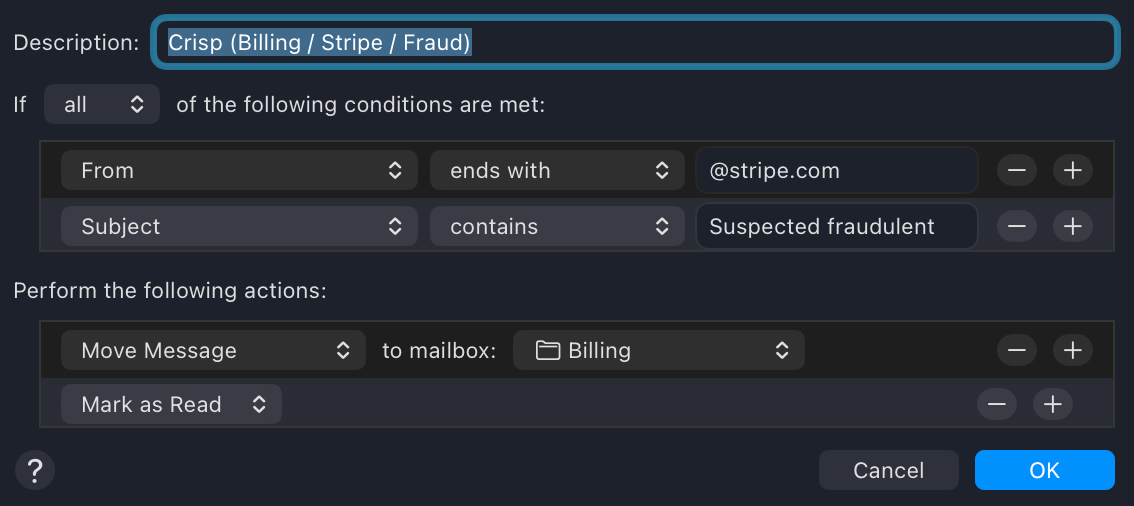
Since I run 100+ filters, slowly added one after the other over the last 10 years, I didn’t want to erase everything and start from scratch. That would have meant total mailbox mess. However, I also did not want to migrate those filters configured in Apple Mail UI (that has no export option whatsoever) to Sieve code by hand. That is error prone and very tedious.
I therefore took some time experimenting on a different migration path: it’s 2026 and LLMs are now insanely good, so let’s use one!
I took individual screenshots of my Apple mail filter configurations (that’s... 100+ screenshots). Then I uploaded those images to “Le Chat” (from Mistral, it’s similar to ChatGPT) asking it to generate equivalent Sieve code. I was not confident at first, but it turns out it handled the conversion to code perfectly, right from screenshots of Apple Mail filter UI, and it even nailed it for more advanced filters with more exotic options! I was impressed.
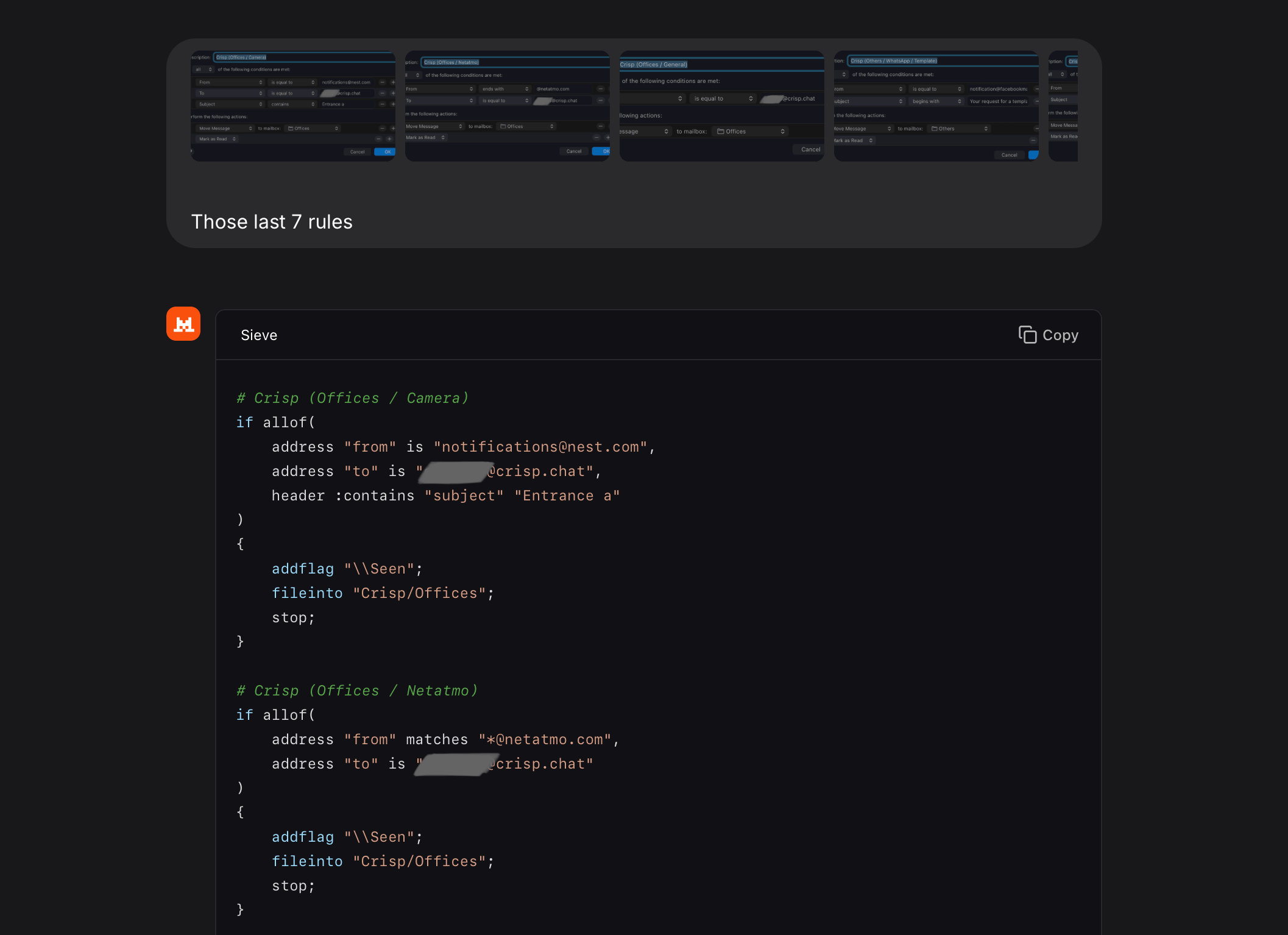
If you are curious, my initial prompt with the first screenshot was as simple as “Make a sieve rule from this apple mail rule“. And it just worked.
Let users upload their own Sieve scripts with ManageSieve
Now, the Sieve script has to run on the server so it needs to be uploaded as configuration (it’s just a file, but it needs to be copied to the server’s /var/mail/ somehow). That works, but it requires a manual action from the server admin every time a user wants to update their Sieve script. Not super practical indeed.
Fortunately, there exists a protocol to manage the scripts from compatible email clients like Mozilla Thunderbird: it’s named ManageSieve (it even has an RFC of its own). Apple Mail is not compatible with ManageSieve, but that’s fine: I found a simple and convenient command line utility to update my Sieve scripts from the terminal (more on that below).
Let’s first enable the ManageSieve plugin on Dovecot.
To expose a ManageSieve server on Dovecot, in /etc/dovecot/dovecot.conf add sieve to protocols as such (in my case):
protocols = imap sieve lmtp
And finally in /etc/dovecot/conf.d/10-master.conf, add a new service:
service managesieve-login {
  inet_listener sieve {
    port = 4190
  }
}
On Debian, you will need to install this package:
apt-get install dovecot-managesieved
When you’re done, reload Dovecot and double-check that TCP port 4190 is open on your server’s firewall.
Ah, and in case you’re wondering: this configuration is already secure as it is. Users can only connect to ManageSieve using their IMAP account credentials, using the same authentication mechanism and encryption requirements as enforced on the IMAP TCP port.
To upload my Sieve script, I used the sieveshell CLI utility. It can be installed on macOS with:
brew install sieve-connect
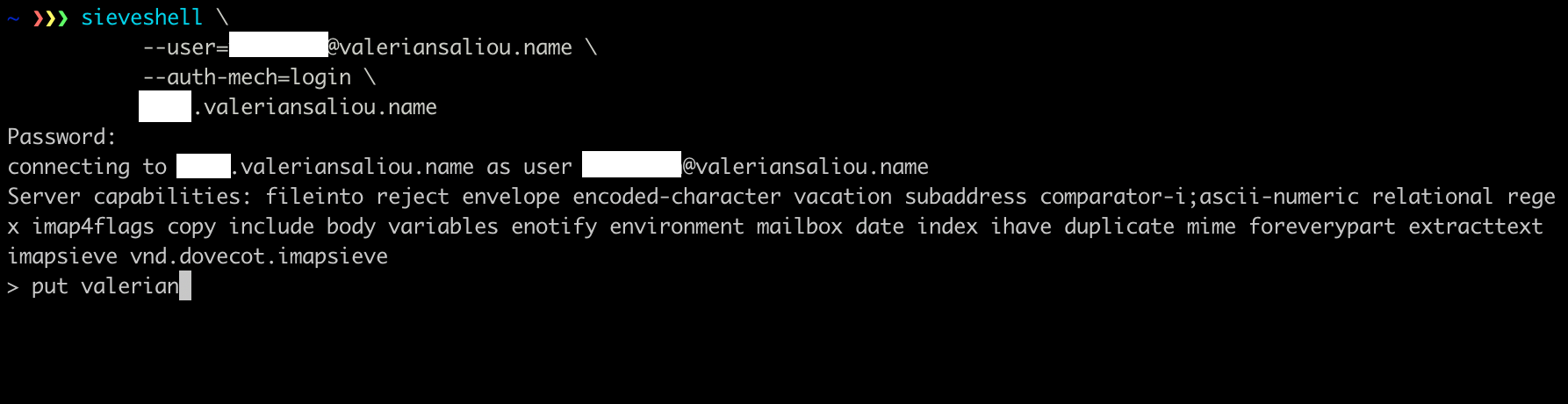
That’s it! Moving from Apple Mail filters to a server-side Sieve script took me 2 hours in total (including migrating my own filters!). This feels very satisfying! 😛
Over the long run, the time invested is definitely worth it: nothing was lost in terms of filtering functionality (it behaves exactly the same as before), but I can now manage my email from any device without depending on a single point of failure (my Mac).
🇨🇷 Written from Drake Bay, Costa Rica.